Requirements-Student 360
Student 360-left menu
i) Student list
ii) Student Affairs__
iii) Student Well-being
iv) Student Complaints
v) Scholarshipp list
vi) Achievements list
vii) Parent Communication
viii) Placements
ix) Library
Roles:
Student Affairs
Advisors
HOD
HOS
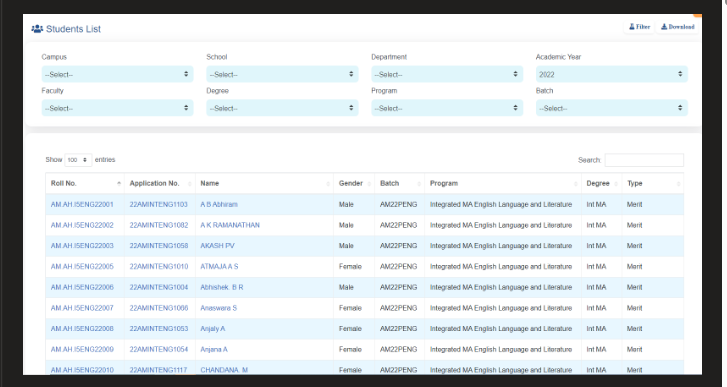
i) Student list(left menu)
-List all the students same as admin portal
-For student affairs-list the campus wise
-For advisors-list only the assigned batch students
-For HOD- list only the assigned dept students
-For HOS- list only the assigned school students
-When you click on the roll no, it will redirect to the student profile.
ii) Student Affairs(left menu)
-Student affairs will be handling this.
Student affairs
a)Disciplinary Actions
b)Committee
Disciplinary actions
The student Affair role can create a disciplinary action through student list.
Select a student from student list.
Go to student profile
Remanining process is explained under the student profile. Please refer.
Committee
Add a create button
-Please refer the E-Track Team creation. Same can apply here.
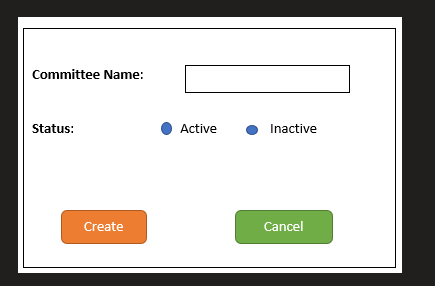
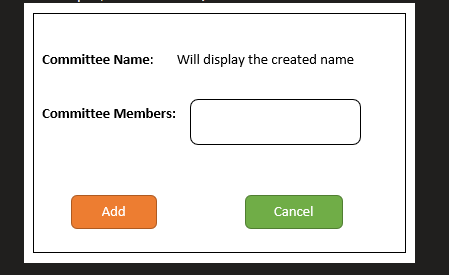
After creating the committee name add the committee members under it(can add any staff from the campus, no restrictions)
iii) Student well-being(left menu)
Advisors can request for medical consultancy through each student profile.
All the request from the advisor will be listed under the student well-being.
-When you click on the roll no, it should redirect to the student profile.Adding report, entering remarks, everything done in the student profile. No entery is done in this table.

iv) Student complaints(left menu)
-will list all the complaints registered by the students through student portal.
-While selecting the roll no, it should redirect to the student profile.

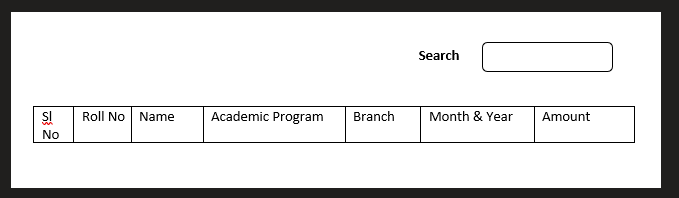
v) Scholarship list(left menu)
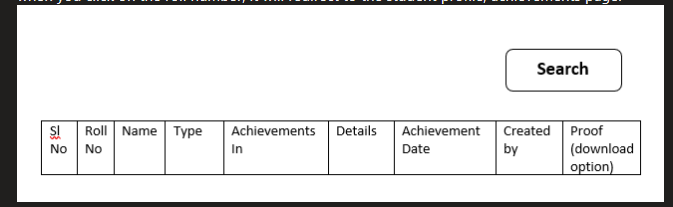
vi) Achievements list
Advisors can add the achievements of each student in their student profile.
all the added achievements in the profile will be listed here.
when you click on the roll number, it will redirect to the student profile, achievements page.
vii) Parent Communications
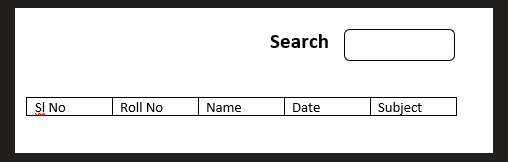
List the students, whose communications made.
When you click on the student roll no, it will redirect to the parent communication tab in student profile.
viii) Placements
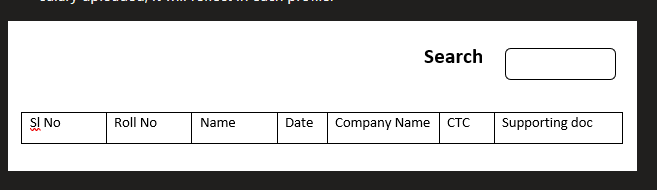
An import option can be added here to upload the placement details in bulk.
Whenever the details are uploaded, it should reflect in each student profile( same as hrms, as salary uploaded, it will reflect in each profile.
ix) Library(can do later, skip for now)
Student profile
-Show the basic details same as admin portal
Profile(admin portal
Academic Records
Payment Records(from finance portal)
Achievement Records
Disciplinary Records
Well-being Records
Scholarship Records
Monitoring Details
Student complaint
Placement details
Library details
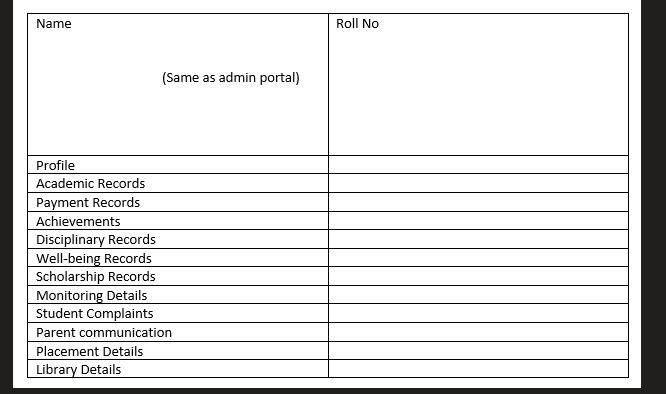
Profile: Show the details same as admin portal.
Academic Records: [_Will discuss later, just add the field]
Payment Records: Show all the payment details.
Achievement Records:
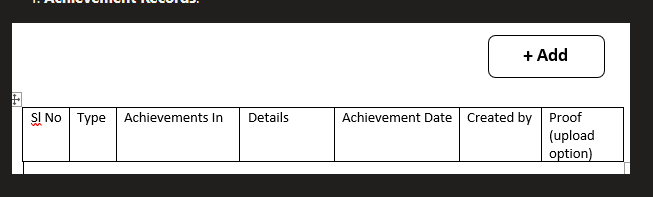
Advisors has the permission to add the achievements to each student.
These entering details should list in the achievements(main left menu)
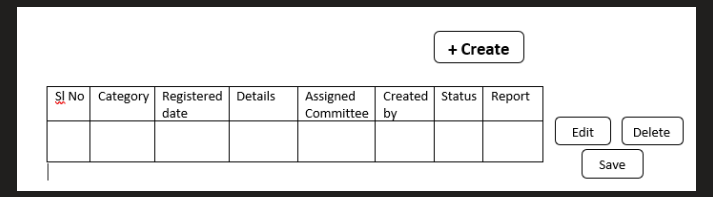
Disciplinary Records
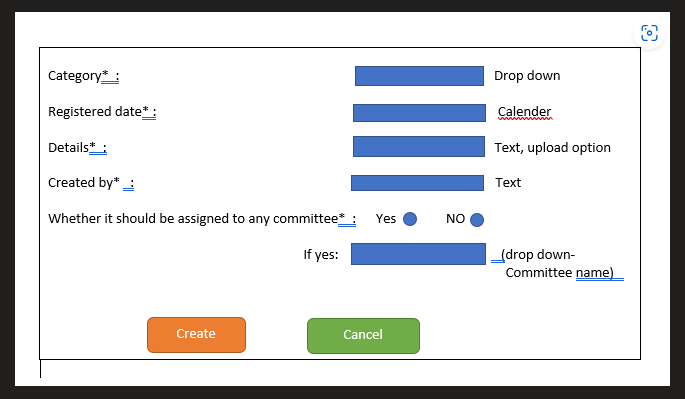
When you click on the create button, then a pop-up window will appear
-In table,
Status: when you create an action, it will show as active.
Later, when they upload the report and click on save button button, the status will change to inactive.
-Edit/delete button required.
-whenever a disciplinary action is added to a student profile, it should display in the main disciplinary action table.If the disciplinary action is assigned to any committee, then a mail notification will be send to the committee members with the disciplinary action details.
Well-being Records
-When an advisor login, he/she can request for a counselling/medical practitioner.
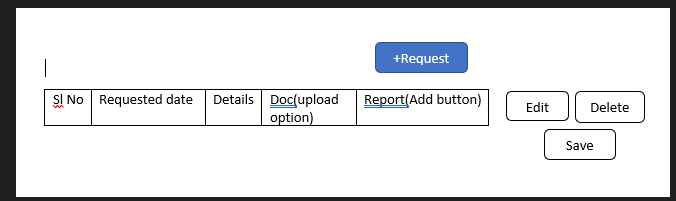
When you click on the Request button, a pop-up window will appear.
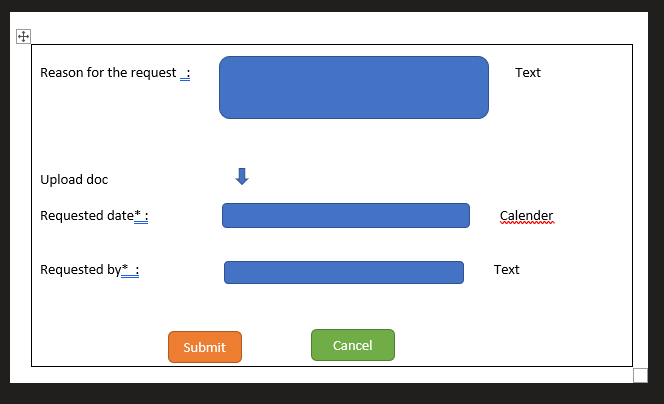
These requests will list in the main student well-being page.
From there the student affairs can assign the medical practitioner.
Scholarship Records

-when you click on the add button, then a pop-up window will appear as shown below,
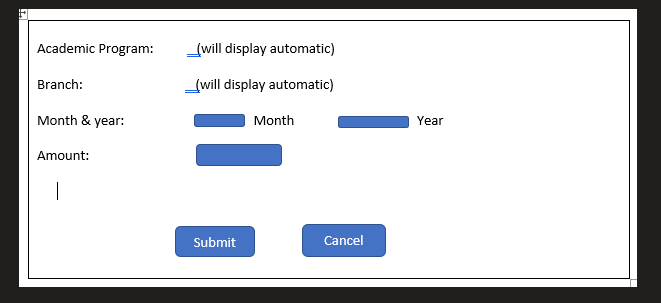
this details will list in the main Scholarship list
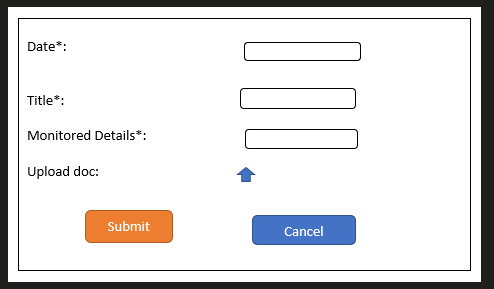
Monitoring Details
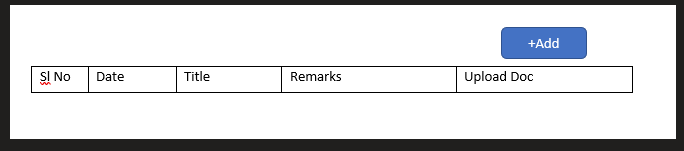
-When you click on the add button a pop-up window will appear as shown below,
Student Complaints
Here the student registered complaint will list in the profile.

When ever a student register complaint, first it should can be resolved/forward to HOD/Forward to student Affairs
When you click on the Complaint in detail, a window will appear
When you login as an Advisor
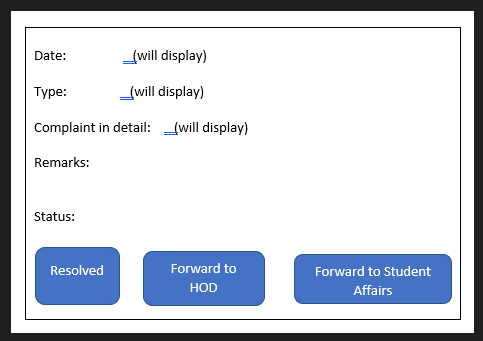
-When you login as HOD
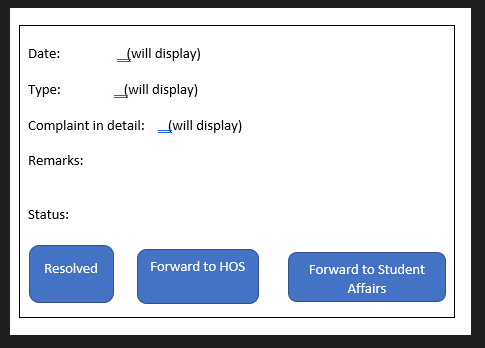
-When you login as HOS
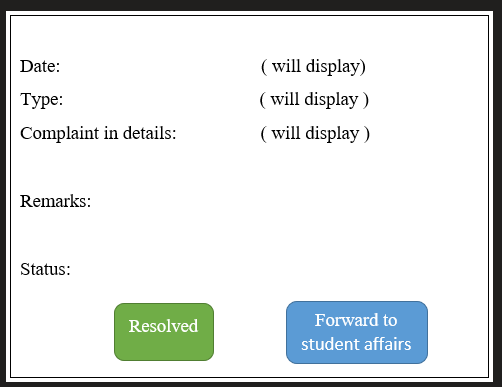
-All these status should reflect in the main left menu(student complaints).
10)Parent communication
Please refer the communication section in admin portal under the student profile.